title: "Shopify Product Photo Editor: Complete Guide for 2026" description: "Edit Shopify product photos like a pro with our complete 2026 guide. Learn requirements, best free tools, and step-by-step workflow to boost sales." date: "2026-02-26" author: "TrustedToolkit Team" readTime: "10 min read"
Shopify Product Photo Editor: Complete Guide for 2026
Your product photos are the silent salespeople of your Shopify store. Research shows that 75% of online shoppers rely on product photography to make purchasing decisions, yet most new Shopify sellers upload amateur photos that actively hurt their conversion rates. The difference between a professional product photo and an amateur snapshot can mean the difference between a 2% conversion rate and a 5% conversion rate—which translates to thousands of dollars in lost revenue.
The good news? You don't need expensive photography equipment or professional editing software to create Shopify-ready product photos. Modern AI-powered editing tools can transform amateur snapshots into sales-driving images in minutes, often for free. This comprehensive guide will show you exactly how to edit your Shopify product photos to meet 2026 technical requirements, choose the right editing tools, and implement a professional workflow that scales with your business.
Whether you're launching your first Shopify store or optimizing an existing catalog of hundreds of products, this guide covers everything you need to know about Shopify product photo editing—from technical specifications to advanced optimization techniques.
Shopify Product Image Requirements 2026
Before you start editing, understanding Shopify's technical requirements ensures your photos display correctly across all devices and sales channels. Shopify has specific guidelines for image dimensions, file formats, and quality standards that directly impact how your products appear to customers and whether they're eligible for features like zoom and marketplace integrations.
Technical Specifications
Recommended Image Size: Shopify recommends 2048 x 2048 pixels for square product images. This resolution provides excellent clarity for desktop viewing while maintaining reasonable file sizes for mobile performance. Square images work best because they display consistently across Shopify themes and maintain proper aspect ratios in grid layouts.
Maximum Dimensions: Shopify supports images up to 5,000 x 5,000 pixels and 20 MB file size, but larger images can significantly slow down your store's load time. Unless you're selling high-detail products like artwork or jewelry that benefit from extreme zoom capabilities, stick to the 2048 x 2048 standard.
Minimum Size for Zoom: Images must be at least 800 x 800 pixels for Shopify's zoom functionality to work. If your images are smaller than this threshold, customers won't be able to zoom in to see product details, which can reduce confidence and hurt conversion rates.
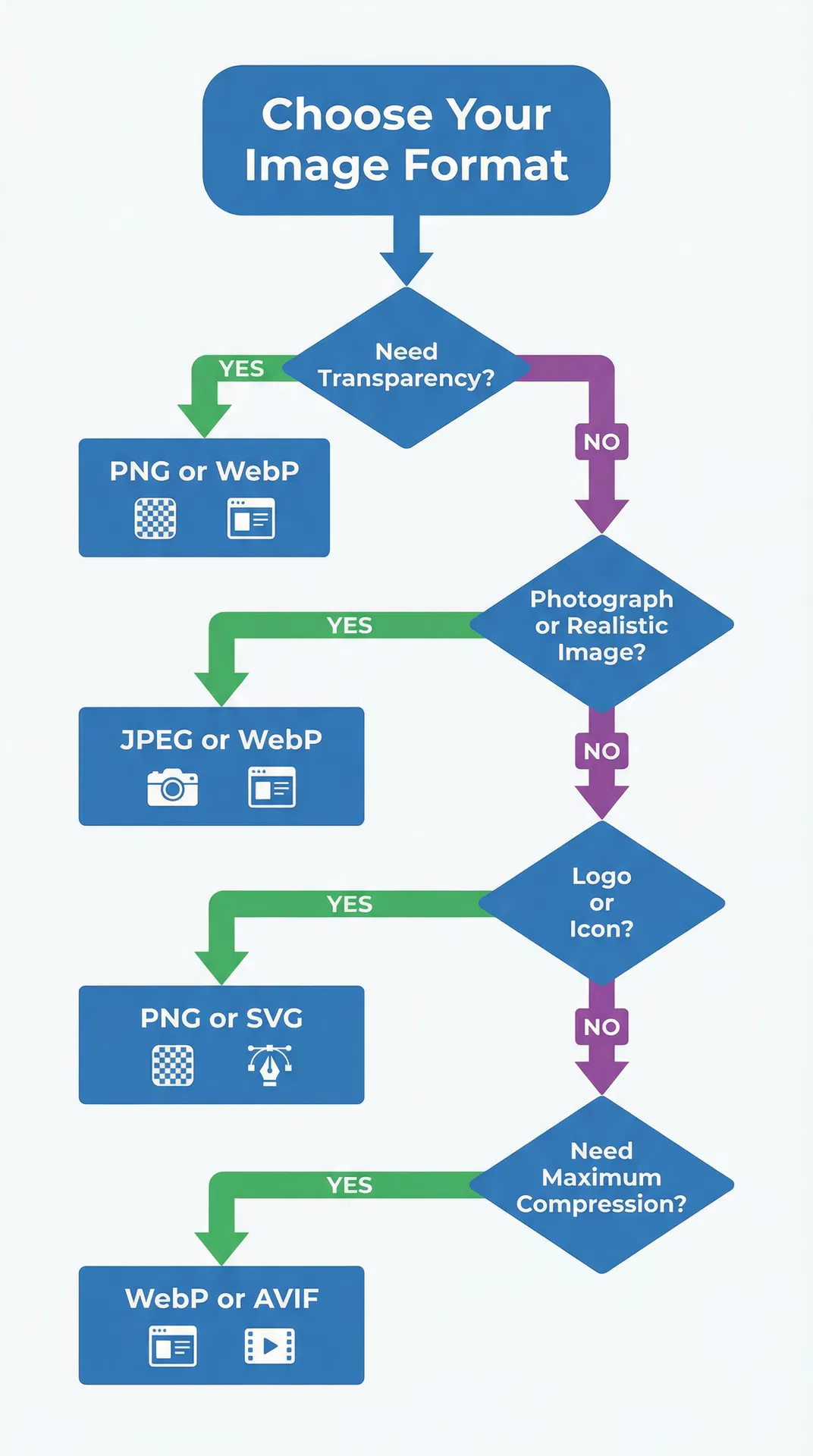
Supported File Formats: Shopify accepts JPEG, PNG, GIF, and WebP formats. For most product photos, JPEG at 70-80% quality provides the best balance of visual quality and file size. Use PNG-24 when you need transparent backgrounds for products displayed on colored or patterned page backgrounds. Shopify automatically converts uploaded images to WebP format for browsers that support it, so you don't need to manually create WebP versions.
Quality Standards for Professional Appearance
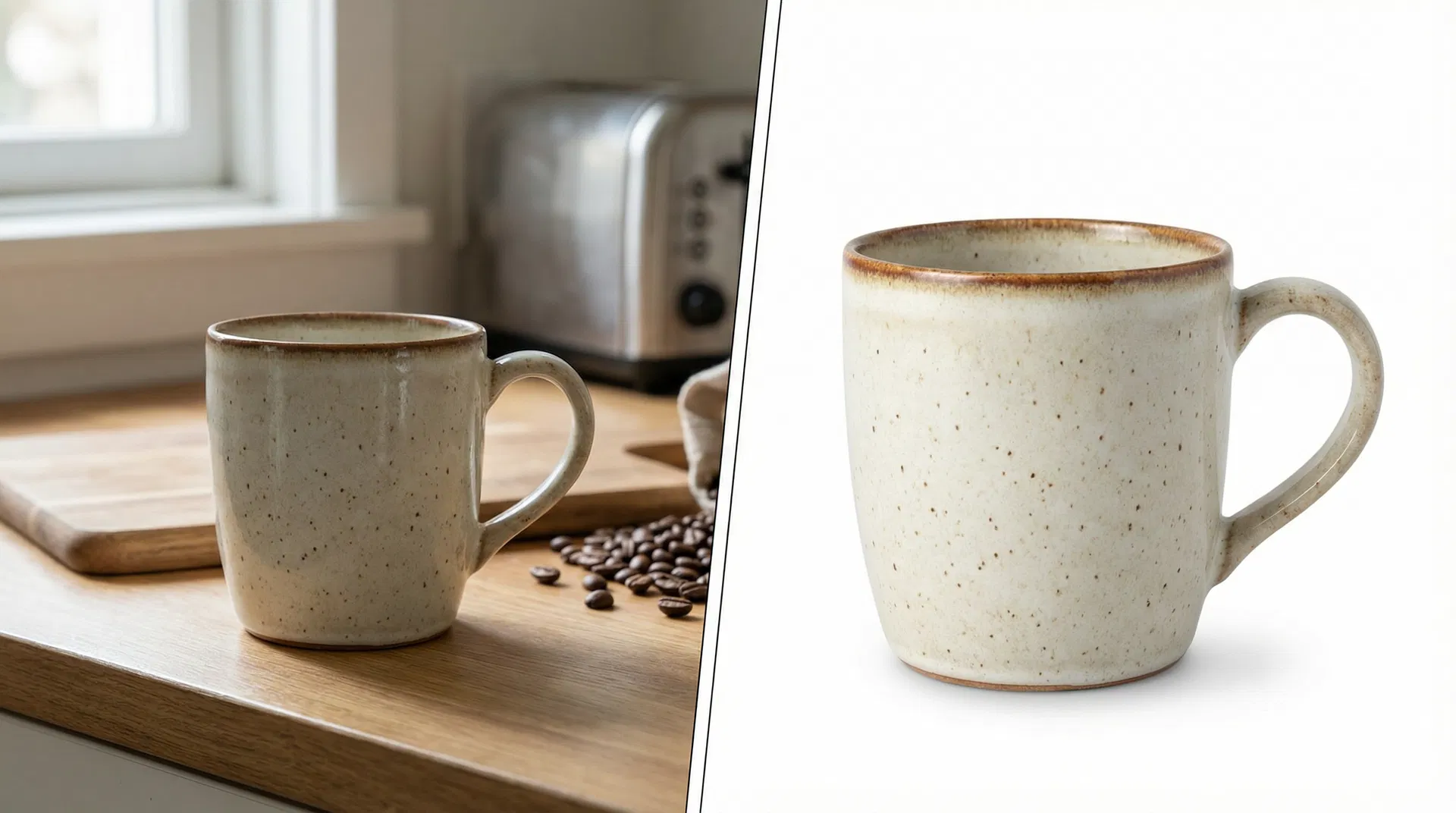
Beyond technical specifications, Shopify product photos should meet certain quality standards to look professional and drive conversions. White or transparent backgrounds are essential for most product categories and are required by many sales channels including Google Shopping, Facebook Marketplace, and Amazon. A pure white background (#FFFFFF) creates a clean, distraction-free presentation that keeps focus on the product itself.
Consistent lighting and color temperature across all product photos creates a cohesive brand appearance. Customers notice when some products have warm yellow lighting while others have cool blue tones—it looks unprofessional and suggests inconsistent quality. Professional product photos use neutral, even lighting that accurately represents product colors.
Product framing matters more than most sellers realize. Your product should fill 80-90% of the image frame without being cropped or cut off. Too much empty space makes products look small and insignificant; too little space makes images feel cramped and claustrophobic. Consistent framing across your catalog creates visual harmony that builds trust.
Avoid watermarks and text overlays on product images (except subtle branding). Shopify's product pages already include your product title, price, and description—adding text to images creates visual clutter and can violate marketplace policies. If you must include branding, place a small, subtle logo in a bottom corner that doesn't obscure product details.
Why These Requirements Matter
Following Shopify's image requirements isn't just about technical compliance—it directly impacts your bottom line. Page load speed affects both conversion rates and SEO rankings. Google's research shows that as page load time increases from 1 second to 3 seconds, bounce rate increases by 32%. Properly optimized images (correct format, appropriate compression, reasonable file size) keep your store fast.
Marketplace compatibility expands your reach beyond your Shopify store. If you plan to sell on Google Shopping, Facebook, Instagram Shopping, or Amazon, your product photos must meet their requirements—which typically align with Shopify's recommendations. Starting with compliant images saves you from having to re-edit hundreds of photos later.
Mobile experience is critical since over 70% of Shopify traffic comes from mobile devices. Images that look great on desktop but load slowly or display incorrectly on mobile will cost you sales. Shopify's recommended 2048 x 2048 size provides excellent quality on high-resolution mobile screens while maintaining fast load times.
Common Shopify Product Photo Problems
Even experienced sellers make these five critical mistakes that hurt conversion rates. Recognizing these problems in your current product photos is the first step toward fixing them.
Problem 1: Distracting Backgrounds
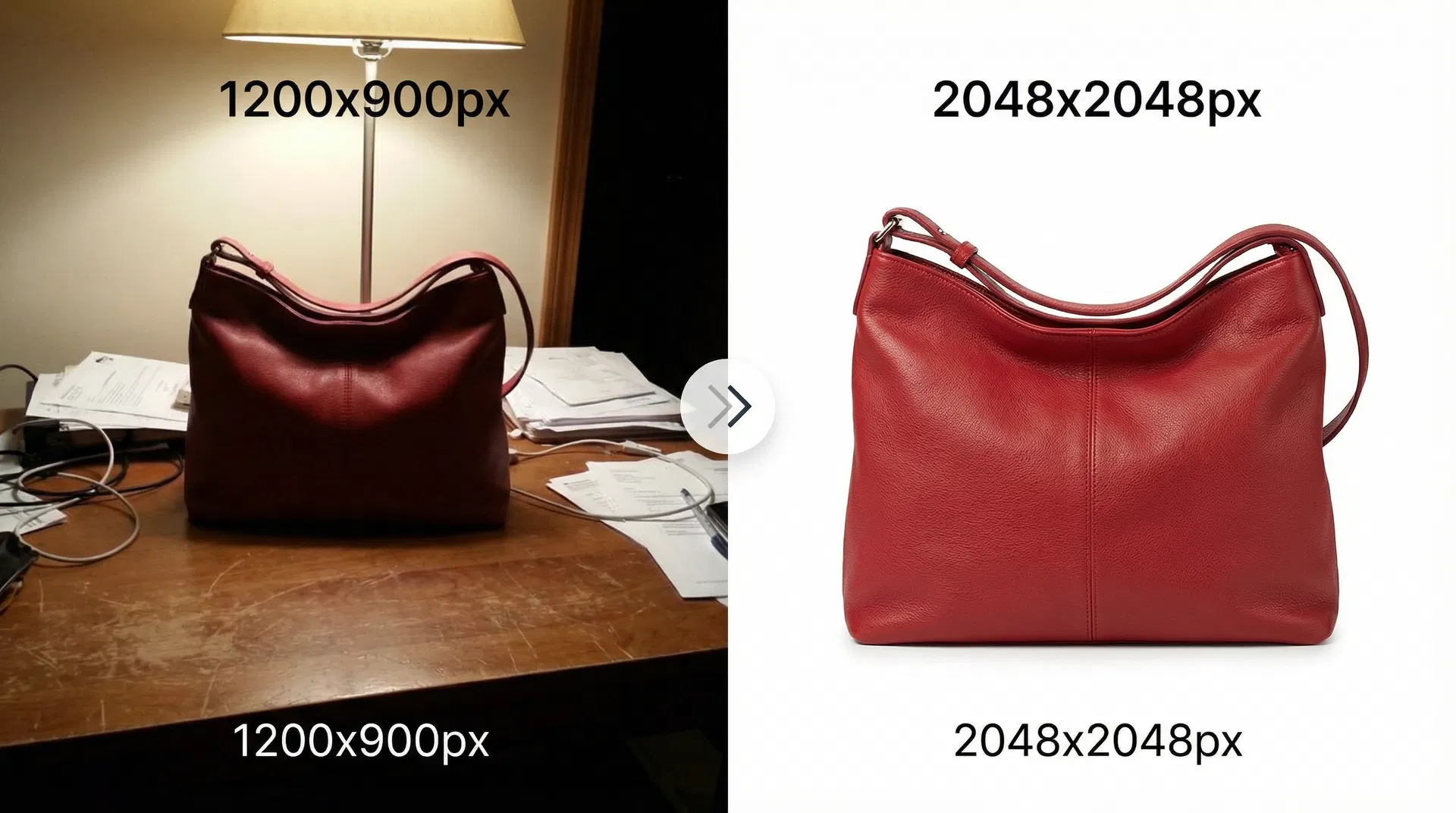
The Issue: Product photos taken against cluttered backgrounds, busy patterns, or inconsistent settings draw attention away from the product itself. Customers' eyes wander to the messy desk, the wrinkled fabric backdrop, or the random objects in the frame instead of focusing on what you're selling.
Impact on Sales: Distracting backgrounds reduce perceived product value and make your store look unprofessional. A/B testing consistently shows that products with clean white backgrounds convert 10-15% better than identical products with cluttered backgrounds.
Solution: Remove backgrounds entirely and replace them with pure white (#FFFFFF) or transparent PNG backgrounds. AI-powered background removal tools like TrustedToolkit's Background Remover can automatically detect product edges and remove backgrounds in seconds, even for complex products with fine details like hair, fur, or intricate patterns.
Problem 2: Inconsistent Sizing
The Issue: Product images with different dimensions and aspect ratios break grid layouts and create an unprofessional, chaotic appearance. When some images are 1200 x 900 pixels while others are 1500 x 1500 pixels, your collection pages look disorganized and customers question your attention to detail.
Impact on Sales: Inconsistent sizing signals poor quality control and reduces trust. Customers subconsciously associate visual inconsistency with product inconsistency—if you can't maintain consistent photos, can they trust your products to be consistent?
Solution: Batch resize all product images to Shopify's recommended 2048 x 2048 pixels. Most product photo editors support batch processing, allowing you to resize hundreds of images simultaneously while maintaining aspect ratios and image quality.
Problem 3: Poor Lighting and Harsh Shadows
The Issue: Products photographed in dim lighting look dull and lifeless, while harsh overhead lighting creates distracting shadows that obscure product details. Both problems make products less appealing and harder to evaluate.
Impact on Sales: Poor lighting reduces perceived product quality and can misrepresent colors, leading to returns and negative reviews. Customers who can't clearly see product details are less likely to purchase.
Solution: Adjust brightness and contrast during editing to bring out product details without overexposing highlights. Use shadow removal tools (available in most AI photo editors) to eliminate harsh shadows while maintaining natural depth. For future photos, invest in a simple two-light setup with diffusers to create even, professional lighting.
Problem 4: Wrong File Format or Excessive File Size
The Issue: Uploading uncompressed PNG files for regular product photos (when JPEG would be more appropriate) or failing to compress images before upload creates unnecessarily large file sizes that slow down your store.
Impact on Sales: Every second of page load delay reduces conversion rates by approximately 7%. If your product pages take 5 seconds to load instead of 2 seconds, you're losing 21% of potential sales to impatient customers who abandon slow-loading pages.
Solution: Use the appropriate image format for each use case. JPEG at 70-80% quality works for most product photos. PNG-24 is necessary only for transparent backgrounds. Compress images before upload to target 100-300 KB per image—large enough for quality but small enough for fast loading.
Problem 5: Color Inconsistency Across Products
The Issue: Products photographed at different times or in different locations often have inconsistent color temperatures—some appear warm and yellow-tinted while others look cool and blue-tinted. This creates a disjointed catalog that looks unprofessional.
Impact on Sales: Color inconsistency makes your store look amateurish and can misrepresent product colors, leading to customer disappointment and returns. Customers expect consistent presentation across your catalog.
Solution: Apply color correction and white balance adjustments during editing to normalize color temperature across all product photos. Create a color reference card by photographing a neutral gray card in your lighting setup, then use it to calibrate white balance for all subsequent edits.
Best Shopify Product Photo Editors
Choosing the right editing tool depends on your budget, technical skill level, and volume of products. Here's an objective comparison of the best free and paid options for Shopify sellers in 2026.
Free Tools (Recommended for Beginners and Budget-Conscious Sellers)
TrustedToolkit Background Remover (Our Recommended Solution)
TrustedToolkit's AI Background Remover is specifically optimized for e-commerce product photography, making it the ideal choice for Shopify sellers who need fast, professional results without a learning curve.
Key Features: AI-powered background removal with automatic edge detection, automatic resizing to Shopify's recommended 2048 x 2048 pixels, batch processing for multiple products, choice of pure white background or transparent PNG output.
Best For: Shopify sellers who need to meet white background requirements quickly, dropshippers editing supplier photos, anyone creating product photos for Google Shopping or Facebook Marketplace.
Pricing: 5 free credits to start, then flexible credit packages from $3 to $1,699 depending on your volume needs. No monthly subscription required—pay only for what you use.
Pros: Browser-based with no software installation required, produces Shopify-optimized output automatically, handles complex product edges (jewelry, clothing, hair) accurately, significantly faster than manual editing in Photoshop.
Cons: Requires credits for bulk processing beyond the free tier. For very large catalogs (500+ products), a monthly subscription tool might be more cost-effective.
Shopify Magic AI Image Editor (Built-In Option)
Shopify's native Magic AI Image Editor is built directly into your Shopify admin panel, making it convenient for quick edits without leaving your workflow.
Key Features: AI background generation and removal, background matching to create consistent product scenes, basic editing tools for brightness and contrast adjustments.
Best For: Quick edits to individual products, creating lifestyle backgrounds for hero images, Shopify sellers who prefer an all-in-one solution.
Pricing: Included with all Shopify subscriptions at no additional cost.
Pros: No additional cost, integrated directly into Shopify admin, no need to download and re-upload images.
Cons: Limited features compared to dedicated editing tools, no batch processing (must edit one image at a time), slower for large catalog updates.
Canva (Creative Editing Platform)
Canva is a versatile design platform that includes product photo editing capabilities alongside its template-based design tools.
Key Features: Drag-and-drop interface, background removal (Pro subscription required), extensive template library for creating lifestyle product shots, resizing and cropping tools, brand kit for consistent styling.
Best For: Sellers who want to add branding elements to product photos, creating social media graphics alongside product images, building lifestyle scenes around products.
Pricing: Free tier available with limited features, Canva Pro at $12.99/month unlocks background removal and advanced features.
Pros: User-friendly interface requires no design experience, combines photo editing with graphic design capabilities, extensive template library for inspiration.
Cons: Background removal requires paid Pro subscription, not specifically optimized for e-commerce workflows, can be overwhelming for users who just need basic product photo editing.
Paid Tools (For High-Volume Sellers and Professional Results)
PhotoRoom (E-Commerce Specialist)
PhotoRoom is purpose-built for e-commerce and marketplace sellers, with features specifically designed for high-volume product photo editing.
Key Features: AI background removal optimized for products, batch processing for multiple images simultaneously, templates for consistent product presentation, automatic shadows and reflections for realistic product placement.
Best For: Sellers with large product catalogs (100+ items), dropshippers who need to quickly edit supplier photos, multi-channel sellers who need consistent images across platforms.
Pricing: Free tier available, Pro subscription at $9.99/month for unlimited editing and batch processing.
Pros: Fast batch processing saves hours on large catalogs, templates ensure consistent presentation, mobile app allows editing on the go.
Cons: Requires monthly subscription for full features, Shopify integration requires manual export and upload.
Claid AI (Professional-Grade Automation)
Claid AI is an API-based solution designed for enterprise-level product photo processing with advanced automation capabilities.
Key Features: HDR enhancement for product detail, AI background removal and generation, automated product shot creation, API integration for workflow automation, bulk processing for thousands of images.
Best For: Large Shopify stores with thousands of products, agencies managing multiple client stores, sellers who want to automate product photo processing.
Pricing: API-based with volume pricing (contact for quote), typically starts around $99/month for moderate usage.
Pros: Professional-grade results, can process thousands of images automatically, API integration allows custom workflows.
Cons: Higher cost than consumer tools, requires technical knowledge for API integration, overkill for small catalogs.
Pebblely AI (Lifestyle Scene Generator)
Pebblely specializes in generating AI-created lifestyle scenes around your products, perfect for creating hero images and social media content.
Key Features: AI-generated product scenes and backgrounds, realistic lighting and shadows, multiple scene variations from a single product photo, style customization for brand consistency.
Best For: Creating lifestyle product shots without photoshoots, generating social media content, building hero images for product pages.
Pricing: Subscription-based, starts at $19/month for basic features.
Pros: Creates professional lifestyle shots without photography, generates multiple variations quickly, maintains consistent product appearance across scenes.
Cons: Best for lifestyle shots rather than standard white background product photos, requires good source images to work well.
Tool Comparison Chart
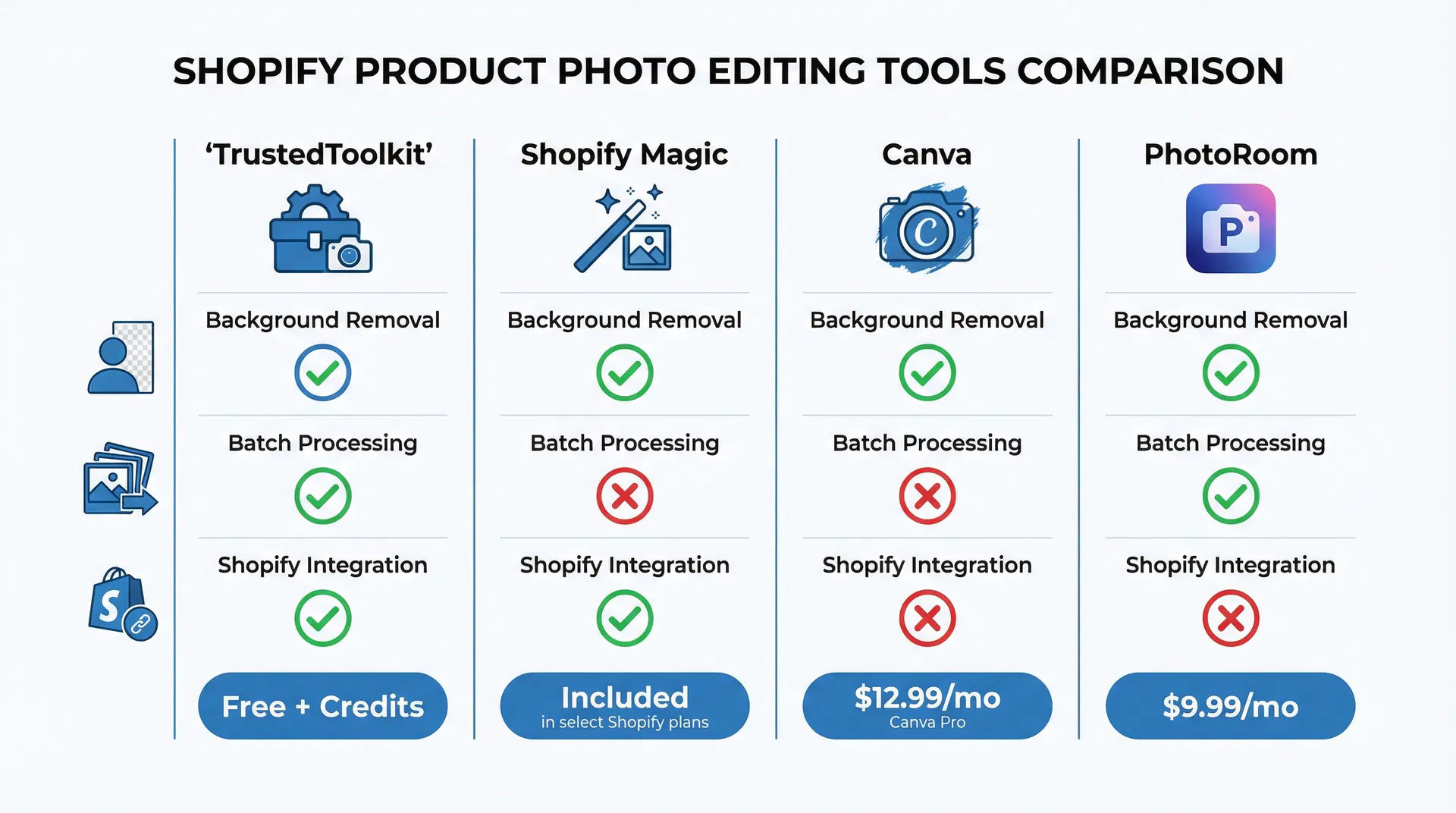
Quick Recommendation: For most Shopify sellers, start with TrustedToolkit's free background remover for your initial product photos. The 5 free credits let you test the quality, and the pay-as-you-go model means you're not locked into a monthly subscription. If you need lifestyle shots or social media graphics, add Canva. For very large catalogs (500+ products), consider PhotoRoom's monthly subscription for unlimited batch processing.
Step-by-Step Shopify Product Photo Editing Workflow
This professional workflow transforms raw product photos into Shopify-ready images that drive sales. Follow these seven steps for every product in your catalog to ensure consistency and quality.
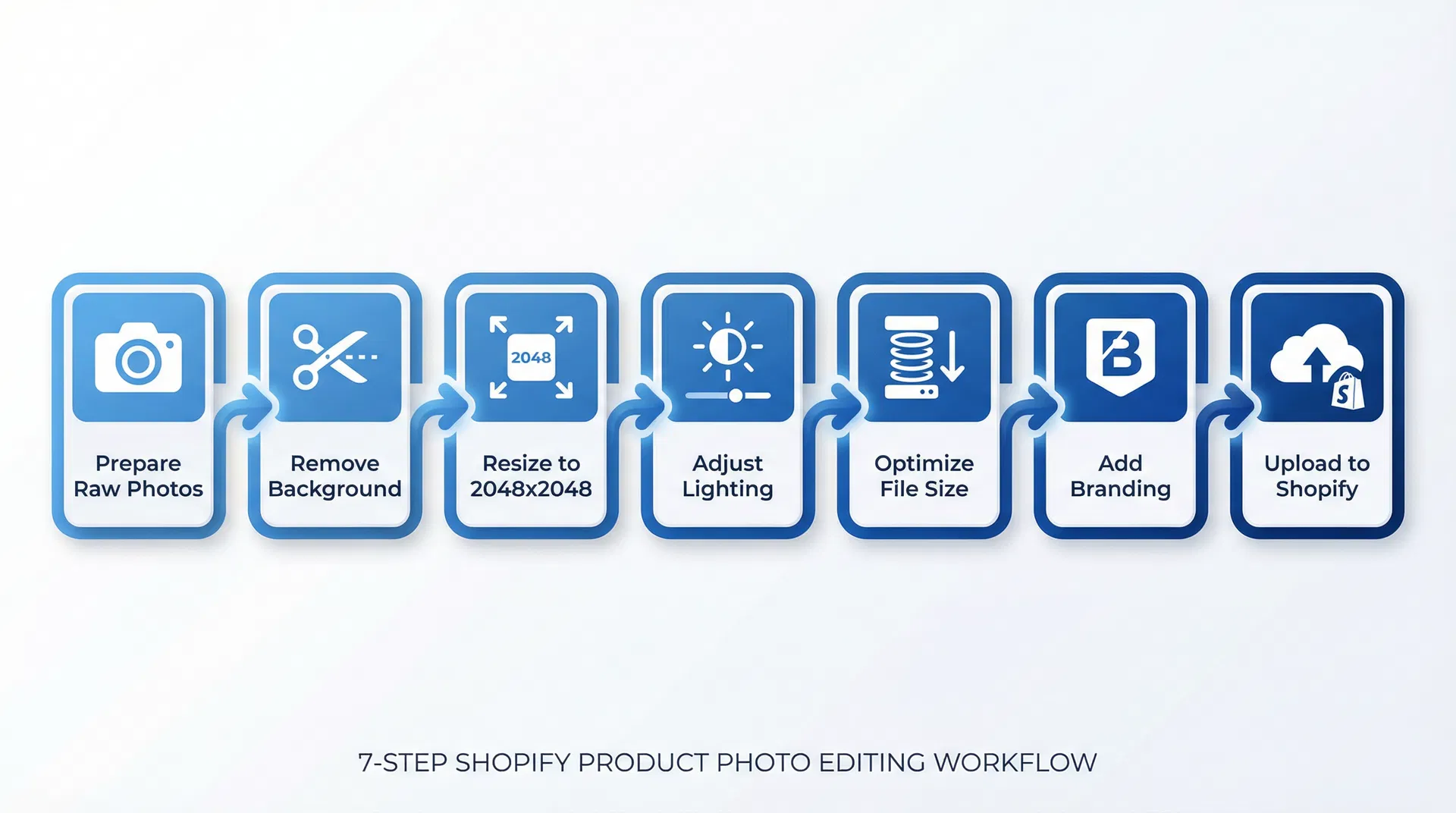
Step 1: Prepare Your Raw Photos
Before editing begins, capture high-quality source images that give editing tools the best possible starting point. Take photos against a neutral background (white, gray, or light-colored wall) to make background removal easier and more accurate. Use consistent lighting setup for all products—ideally two softbox lights positioned at 45-degree angles to eliminate harsh shadows.
Capture multiple angles for each product: front view, side view, back view, and detail shots showing important features like textures, labels, or unique characteristics. Shoot at the highest resolution your camera supports—you can always downsize images later, but you can't add detail that wasn't captured originally.
Pro Tip: Create a simple photo station in a well-lit area near a window for natural light. Use a white poster board as a backdrop and reflector to bounce light and fill shadows. This $10 setup produces results comparable to professional photo studios for most products.
Step 2: Remove or Replace Background
Background removal is the most transformative step in product photo editing. Upload your raw photo to TrustedToolkit's Background Remover and select either pure white background (#FFFFFF) for marketplace compatibility or transparent PNG for products that will be displayed on colored page backgrounds.
The AI automatically detects product edges and removes the background in seconds, even for complex products with fine details like jewelry chains, fabric textures, or hair. Download the edited image and verify that edge detection was accurate—zoom in to check that no background remnants remain around product edges.
Alternative Method: If you prefer Shopify's built-in tools, use Shopify Magic's background removal feature by navigating to Products → Select Product → Edit Images → Remove Background. This works well for simple products but may struggle with complex edges.
Step 3: Resize to Shopify Specifications
Resize your background-removed image to Shopify's recommended 2048 x 2048 pixels. If your product isn't naturally square, add padding to create a square canvas while keeping the product centered. Ensure the product fills 80-90% of the frame—not so large that it feels cramped, not so small that it looks insignificant.
TrustedToolkit's Background Remover handles resizing automatically, outputting images at 2048 x 2048 pixels with proper product framing. If you're using other tools, most photo editors have a "Canvas Size" or "Image Size" function that allows you to set exact pixel dimensions while maintaining aspect ratio.
Important: Always resize after background removal, not before. Removing the background first gives you clean edges to work with when adjusting canvas size and product positioning.
Step 4: Adjust Brightness and Contrast
Even with good lighting during photography, most product photos benefit from brightness and contrast adjustments during editing. Increase brightness slightly to make products look fresh and appealing, but avoid overexposing highlights which can wash out important details and textures.
Increase contrast moderately to make products "pop" and create visual definition between different product elements. Be careful not to over-contrast, which creates an artificial, over-processed appearance. The goal is to enhance natural product appearance, not create a heavily edited look.
Match color temperature across all product photos by adjusting white balance. If some photos appear warm (yellow-tinted) while others look cool (blue-tinted), use your editing tool's white balance slider to normalize color temperature. This creates visual consistency across your catalog.
Tool Recommendations: Canva's "Adjust" panel provides easy-to-use sliders for brightness, contrast, and saturation. Shopify Magic includes basic adjustment tools. For more precise control, use GIMP (free) or Photoshop (paid).
Step 5: Optimize File Size and Format
Export your edited image in the appropriate format for its use case. For most product photos with white backgrounds, use JPEG format at 70-80% quality. This provides excellent visual quality while keeping file sizes reasonable (typically 100-300 KB per image).
For products with transparent backgrounds, use PNG-24 format. PNG files are larger than JPEGs (typically 300-800 KB) but necessary to preserve transparency. Compress PNG files using tools like TinyPNG or Squoosh to reduce file size without losing transparency.
Verify that your final file size doesn't exceed 20 MB (Shopify's maximum) and ideally stays under 500 KB for fast page loading. Large file sizes slow down your store and hurt both conversion rates and SEO rankings.
Pro Tip: Shopify automatically converts uploaded images to WebP format for browsers that support it, providing additional compression without quality loss. You don't need to manually create WebP versions—just upload JPEG or PNG and let Shopify handle the optimization.
Step 6: Add Consistent Branding (Optional)
If your brand guidelines include watermarks or logos on product images, add them consistently across all photos. Place a small, subtle logo in the bottom right or bottom left corner where it doesn't obscure product details. Keep logo opacity around 50-70% so it's visible but not distracting.
Important Consideration: Many marketplaces (Google Shopping, Facebook, Amazon) prohibit or discourage watermarks and text overlays on product images. If you plan to sell on multiple channels, consider skipping watermarks on main product photos and instead adding them only to lifestyle or styled shots.
Step 7: Upload to Shopify and Test
Upload your edited images to Shopify by navigating to Products → Select Product → Media → Add Media. Upload all product angles (front, side, back, detail shots) and arrange them in logical order with the hero shot first.
Test the zoom functionality by clicking on the product image in your store's preview mode. Verify that zoom works smoothly and reveals product details clearly. Preview your product page on mobile devices to ensure images load quickly and display correctly at smaller screen sizes.
Check page load speed using Google PageSpeed Insights or Shopify's built-in speed report. If your product pages load slowly, your images may be too large and need additional compression.
Advanced Tips for Shopify Product Photos
Once you've mastered the basic workflow, these advanced techniques can further improve your product photo quality and conversion rates.
Batch Processing for Efficiency
If you're editing dozens or hundreds of product photos, batch processing saves hours of repetitive work. Upload multiple images simultaneously to tools like TrustedToolkit's Background Remover or PhotoRoom, apply the same edits to all images at once, and download the entire batch as a ZIP file.
Create editing presets for different product categories. For example, save brightness and contrast settings that work well for apparel, then apply those same settings to all clothing items in your catalog. This ensures consistency while dramatically reducing editing time.
Shadow Removal and Addition
Harsh shadows from overhead lighting distract from products and create an amateur appearance. Use AI shadow removal tools (available in Claid AI, PhotoRoom, and some Canva templates) to eliminate unwanted shadows while preserving natural product depth.
Conversely, adding subtle artificial shadows can make products on white backgrounds appear more three-dimensional and realistic. Many product photo editors include shadow generation features that create natural-looking drop shadows or reflection shadows beneath products.
Color Correction for Accurate Representation
Product colors must match real-life appearance to avoid returns and negative reviews. Use your editing tool's color correction features to adjust hue, saturation, and luminance until product colors match the physical item exactly.
Create a color reference by photographing a color calibration card (like the X-Rite ColorChecker) in your lighting setup, then use it to calibrate colors during editing. This ensures that reds look red (not orange), blues look blue (not purple), and whites look white (not cream or gray).
Lifestyle Shots with AI Scene Generation
While white background photos work well for product grids and marketplace listings, lifestyle shots showing products in use can significantly boost conversion rates on product detail pages. Tools like Pebblely AI and Flair.ai generate realistic lifestyle scenes around your products without requiring photoshoots.
Upload your white background product photo, select a scene style (modern kitchen, outdoor setting, minimalist desk, etc.), and the AI generates a photorealistic scene with proper lighting, shadows, and perspective. This creates aspirational imagery that helps customers visualize products in their own lives.
360-Degree Product Views
For products where customers need to see all angles (furniture, electronics, apparel), consider creating 360-degree interactive views. Capture 24-36 photos of your product rotating on a turntable, then use tools like Sirv or Cloudinary to combine them into an interactive viewer that customers can spin with their mouse or finger.
While more time-intensive than standard product photos, 360-degree views can increase conversion rates by 10-30% for products where viewing all angles reduces purchase hesitation.
Video Integration
Shopify supports product videos alongside images, and video content can dramatically increase engagement and conversion rates. Create short (15-30 second) product videos showing products from multiple angles, demonstrating key features, or showing products in use.
Videos don't need professional production quality—smartphone videos with good lighting often outperform professionally produced videos because they feel more authentic and trustworthy. Upload videos in MP4 format, keeping file sizes under 1 GB for reasonable load times.
Shopify Product Photo SEO Optimization
Optimized product images don't just look good—they also help your products rank in Google Image Search and improve overall SEO performance.
Descriptive Alt Text
Alt text serves two purposes: accessibility for visually impaired users and SEO context for search engines. Write descriptive alt text that accurately describes the product and includes relevant keywords naturally. For example: "Red leather crossbody handbag with gold hardware and adjustable strap" rather than generic "product image" or keyword-stuffed "red handbag leather bag purse crossbody."
Include product attributes (color, material, style) and distinguishing features in alt text. For multiple product images, differentiate them: "Red leather handbag front view," "Red leather handbag side view showing adjustable strap," "Red leather handbag interior compartments."
Keyword-Optimized File Names
Before uploading images to Shopify, rename files with descriptive, keyword-rich names. Use hyphens to separate words (not underscores or spaces) and keep file names concise but descriptive. For example: red-leather-crossbody-handbag-front.jpg instead of IMG_1234.jpg or product-image.jpg.
Descriptive file names help search engines understand image content and can improve rankings in Google Image Search, which drives significant traffic for product-focused queries.
Image Compression for Load Speed
Page load speed is a confirmed Google ranking factor, and images are typically the largest contributors to slow load times. Compress images to the smallest file size that maintains acceptable quality—typically 100-300 KB for product photos.
Use modern compression tools that apply smart compression algorithms, reducing file size by 50-70% without visible quality loss. Shopify's automatic WebP conversion provides additional compression for supported browsers, but starting with optimized source images ensures fast loading even in older browsers.
Lazy Loading
Shopify themes automatically implement lazy loading, which delays loading images until they're about to enter the viewport. This speeds up initial page load by only loading visible images first, then loading additional images as users scroll.
Ensure your theme has lazy loading enabled (most modern Shopify themes do by default) and avoid disabling it, as it significantly improves perceived performance especially on product pages with many images.
Structured Data (Product Schema)
Most Shopify themes automatically include product schema markup (structured data) that tells search engines about your products, including images. Verify that your theme implements schema correctly by testing a product page URL in Google's Rich Results Test.
Proper product schema can result in rich snippets in search results, showing product images, prices, and availability directly in Google search results—significantly increasing click-through rates from search.
Frequently Asked Questions
What size should Shopify product images be?
Shopify recommends 2048 x 2048 pixels for square product images. This size provides high resolution for zoom functionality while maintaining reasonable file sizes for fast page loading. Images must be at least 800 x 800 pixels for Shopify's zoom feature to work properly. While Shopify supports images up to 5,000 x 5,000 pixels and 20 MB file size, larger images can significantly slow down your store's load time and hurt conversion rates. For most products, the 2048 x 2048 standard offers the best balance of quality and performance.
Do I need a white background for Shopify products?
While Shopify doesn't technically require white backgrounds for all products, using pure white backgrounds (#FFFFFF) is strongly recommended for several reasons. Many sales channels and marketplaces that integrate with Shopify—including Google Shopping, Facebook Marketplace, Instagram Shopping, and Amazon—require white backgrounds for product listings. White backgrounds create a clean, professional appearance that keeps customer focus on the product itself rather than distracting backgrounds. They also ensure consistent presentation across your catalog and work well with any theme or page background color. For products that will be displayed on colored or patterned page backgrounds, transparent PNG backgrounds are an acceptable alternative.
What's the best free Shopify product photo editor?
For background removal and Shopify optimization, TrustedToolkit's Background Remover is the best free option, offering 5 free credits and producing Shopify-ready images (2048 x 2048 pixels, white background or transparent PNG) automatically. For general editing needs like brightness adjustment and cropping, Canva's free tier provides user-friendly tools without requiring photo editing experience. Shopify's built-in Magic AI Image Editor is also free for all Shopify merchants and integrates directly into your admin panel for convenient editing without downloading and re-uploading files. The best choice depends on your specific needs—TrustedToolkit excels at background removal, Canva offers creative flexibility, and Shopify Magic provides convenience.
Can I use AI to edit Shopify product photos?
Yes, AI-powered tools have revolutionized product photo editing for Shopify sellers. Tools like Shopify Magic, TrustedToolkit, Pebblely, and Claid AI can automatically remove backgrounds, generate product scenes, enhance image quality, and create lifestyle shots without manual editing or photoshoots. AI editing is particularly valuable for batch processing large product catalogs, creating consistent white backgrounds across hundreds of products, and generating professional-looking lifestyle imagery without expensive photography equipment. However, AI tools work best when starting with high-quality source photos—they can enhance good images and fix common problems, but they can't transform fundamentally poor photography into professional results.
How do I batch edit product photos for Shopify?
Batch editing saves hours when processing large product catalogs. Upload multiple images simultaneously to tools like TrustedToolkit's Background Remover (supports batch background removal and resizing), PhotoRoom (unlimited batch processing with Pro subscription), or Canva (batch resize and apply consistent branding). For very large catalogs (100+ products), consider API-based solutions like Claid AI that can process thousands of images automatically with custom workflows. Shopify's Magic editor currently processes one image at a time, making it better suited for small catalogs or individual product updates rather than bulk editing.
Should I compress images before uploading to Shopify?
Yes, compressing images before uploading to Shopify is essential for maintaining fast page load speeds, which directly impact conversion rates and SEO rankings. Target file sizes of 100-300 KB for JPEG product photos and 300-800 KB for PNG images with transparent backgrounds. Use compression tools like TinyPNG, Squoosh, or built-in compression in photo editors to reduce file size by 50-70% without visible quality loss. While Shopify automatically converts images to WebP format for supported browsers (providing additional compression), starting with optimized source images ensures fast loading across all browsers and devices. Remember that every second of page load delay reduces conversion rates by approximately 7%—properly compressed images are critical for sales performance.
What file format should I use for Shopify product photos?
For most product photos with white backgrounds, use JPEG format at 70-80% quality. This provides excellent visual quality while keeping file sizes small (typically 100-300 KB). For products with transparent backgrounds that will be displayed on colored or patterned page backgrounds, use PNG-24 format to preserve transparency. Avoid using PNG for regular product photos with white backgrounds, as PNG files are significantly larger than JPEGs without providing visual benefits for photographic content. Shopify automatically converts uploaded images to WebP format for browsers that support it, so you don't need to manually create WebP versions—just upload JPEG or PNG and let Shopify handle the optimization. For more detailed guidance on choosing the right format, read our comprehensive guide on PNG vs WebP vs JPEG formats.
Conclusion: Transform Your Shopify Product Photos Today
Professional product photography is no longer reserved for brands with big budgets and in-house creative teams. Modern AI-powered editing tools have democratized product photo editing, making it possible for any Shopify seller to create sales-driving images in minutes rather than hours.
The key takeaways from this guide are straightforward: follow Shopify's technical requirements (2048 x 2048 pixels, appropriate file formats, optimized compression), use the right tools for your needs and budget, and maintain consistency across your entire product catalog. These three principles will transform amateur product photos into professional images that build trust and drive conversions.
Your action plan starts here: Begin by auditing your current product photos against the five common problems outlined in this guide. Identify which products have distracting backgrounds, inconsistent sizing, poor lighting, wrong file formats, or color inconsistencies. Prioritize fixing your best-selling products first—improving photos for your top 20% of products will deliver 80% of the conversion rate improvement.
Try our free background remover tool to experience how quickly AI can transform your product photos. With 5 free credits, you can edit your top-performing products risk-free and see the quality difference immediately. Start editing your Shopify product photos now and watch your conversion rates improve.
For sellers with larger catalogs, explore our flexible credit packages that scale with your business—from small startups to enterprise-level operations processing thousands of products. No monthly subscriptions, no long-term commitments—just pay for what you use.
Related Resources:
- How to Make Image Background Transparent - Detailed guide on creating transparent PNG backgrounds
- PNG vs WebP vs JPEG: Which Format to Use - Complete format comparison for optimal file selection
- Amazon White Background Requirements - Marketplace-specific requirements for multi-channel selling
- Remove Metadata from Photos Before Posting - Protect privacy and reduce file sizes
Professional product photos are the foundation of successful Shopify stores. Start editing today and transform your amateur snapshots into sales-driving images that build trust, reduce returns, and increase conversion rates.